












Amazon Vine Login: How Sellers and Reviewers Access Vine, and What to Do When It's Missing
Most people who search for an Amazon Vine login are not really looking for a sign-in page. They are trying to work out why Vine is not where they expected it to be.
A seller opens Seller Central, looks under Advertising, and Vine is not listed. A newly invited reviewer types "Vine" into the Amazon app and finds nothing. Someone else lands on a page that says the program is invitation-only and wonders whether their account is broken.
In almost every one of these cases the login is fine. The problem is access: the wrong account, the wrong marketplace, a missing brand role, a missing user permission, or an invitation that was never issued. That distinction decides what you should do next, and it is the reason a password reset rarely helps.
This guide gives you the exact access path for sellers and for reviewers, shows how to tell a login problem from an eligibility problem, and walks through the real reasons Vine goes missing, with the fix for each.
TL;DR: Key Takeaways
- There is no separate Amazon Vine login, password, portal or app. Vine lives inside the Amazon account you already use.
- Sellers open Seller Central and go to Advertising > Vine. The menu item only appears when the account meets Amazon's prerequisites: Professional plan, Brand Representative or Reseller role (or generic products), an eligible FBA offer, a supported store and, for team members, the Vine user permission.
- Reviewers sign in to their regular Amazon account and open amazon.com/vine (or their marketplace's /vine). The page only works for accounts Amazon has invited; there is no application.
- If Vine is missing, it is almost always an eligibility or invitation issue, not a credential issue. A password reset rarely fixes anything.
- Vine currently operates in nine Amazon stores: the US, Canada, the UK, France, Germany, Italy, Spain, Australia and Japan. India and the UAE are not on Amazon's list.
How Do You Log In to Amazon Vine?
/vine path); the page only works if Amazon has invited that account. If Vine is not there, the cause is almost always eligibility or invitation, not your credentials.
- Sellers: sellercentral.amazon.com/vine redirects through the standard Seller Central sign-in and lands on the Vine dashboard when the account qualifies.
- Reviewers: amazon.com/vine. The older address vine.amazon.com still works because it redirects to the same place on amazon.com.
- Vine not showing? Skip to the troubleshooting section.
Which Amazon Vine Login Do You Need? Seller vs Reviewer Access
Vine has two completely separate sides. Sellers enroll products. Reviewers (Amazon calls them Vine Voices) receive and review those products. Each side uses a different account, a different entry point and a different set of rules, and a lot of online confusion comes from guides that blend the two.
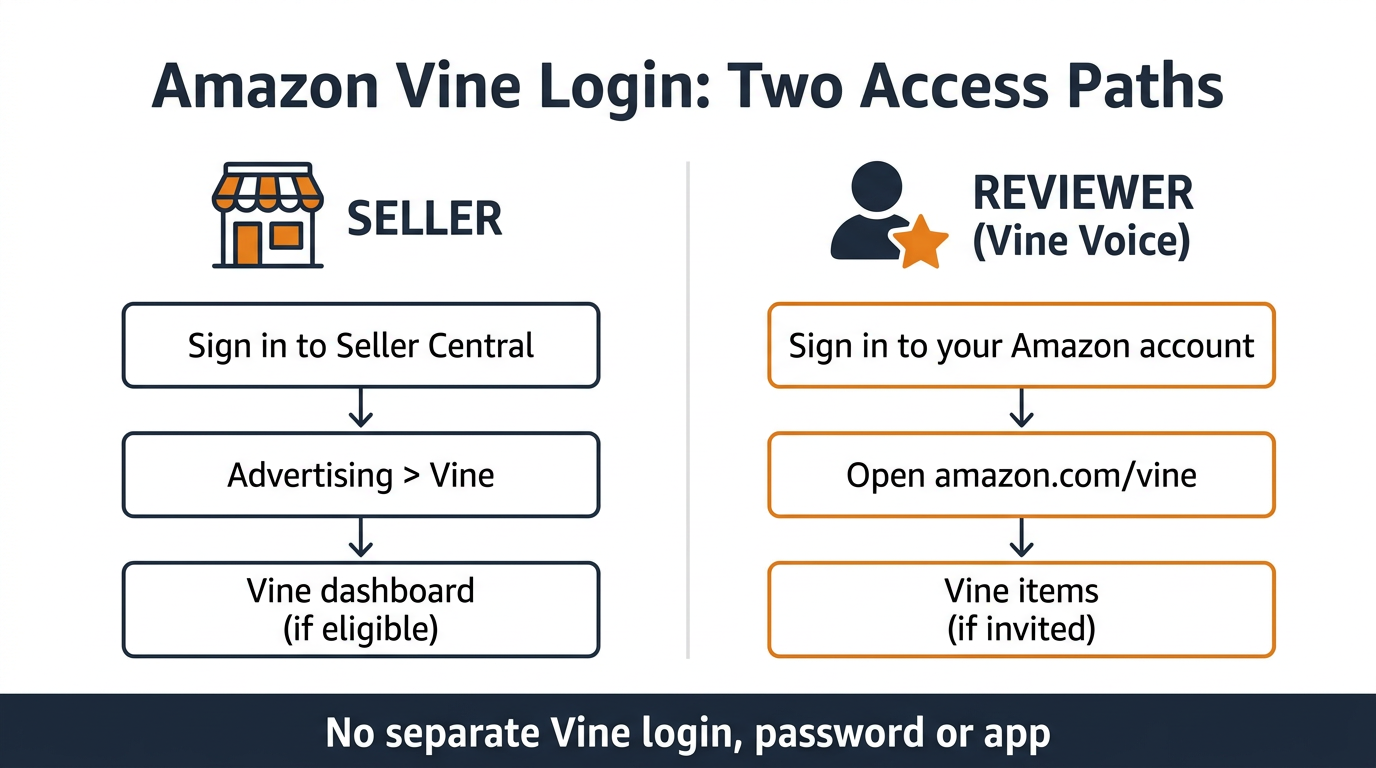
Find your row before you do anything else.
| If you are | Account you use | Access route | Eligibility or invitation context | Most common access problem |
|---|---|---|---|---|
| A seller, brand owner or authorized reseller | Seller Central | Advertising > Vine | Professional plan, Brand Representative or Reseller role, eligible FBA offer, supported marketplace | Vine missing from the Advertising menu because a prerequisite or user permission is not met |
| A team member or agency inside a client's Seller Central | Client's Seller Central, under your own user login | Same path, once the admin grants the Vine permission | Permission set under Settings > User Permissions > Manage Permissions > Advertising > Vine | Owner can see Vine, you cannot |
| An invited reviewer (Vine Voice) | Regular Amazon customer account that received the invitation | Sign in, then open amazon.com/vine or your marketplace's /vine | Amazon-issued invitation; no application exists | Wrong account, wrong marketplace, or an invitation that was never accepted |
| A shopper who has not been invited | Regular Amazon account | None | Not eligible until Amazon invites you | Expecting a sign-up form that does not exist |
One clarification sellers ask about often: “brand owner” is not a separate login. It is a normal seller account whose user holds a specific Brand Registry role. That role, not ownership of the trademark, is what unlocks Vine. Amazon's own community managers have confirmed on the Seller Forums that holding only the Administrator and Rights Owner roles is not enough; the user needs the Brand Representative role.
How to Access Amazon Vine as a Seller
For a brand, Vine access is a launch question. Amazon recommends enrolling products at least three weeks before launch with FBA inventory already in place, so a missing Vine menu discovered the week before a launch is a scheduling problem, not just an admin one.
The Seller Central path: Advertising > Vine
- Sign in to Seller Central for the marketplace you want to use. Use a desktop browser. If you sell in several stores from a unified account, switch the marketplace selector first, because Vine availability is decided per store.
- Hover over Advertising in the top navigation and select Vine. This is the path Amazon describes on its official Amazon Vine page for sellers.
- Or use the direct link. sellercentral.amazon.com/vine takes you through the normal sign-in and opens the dashboard.
If Vine does not appear under Advertising, stop here. Nothing is wrong with the login. Seller Central simply does not render the menu item until the account passes the checks in the next section.
What Amazon checks before Vine appears
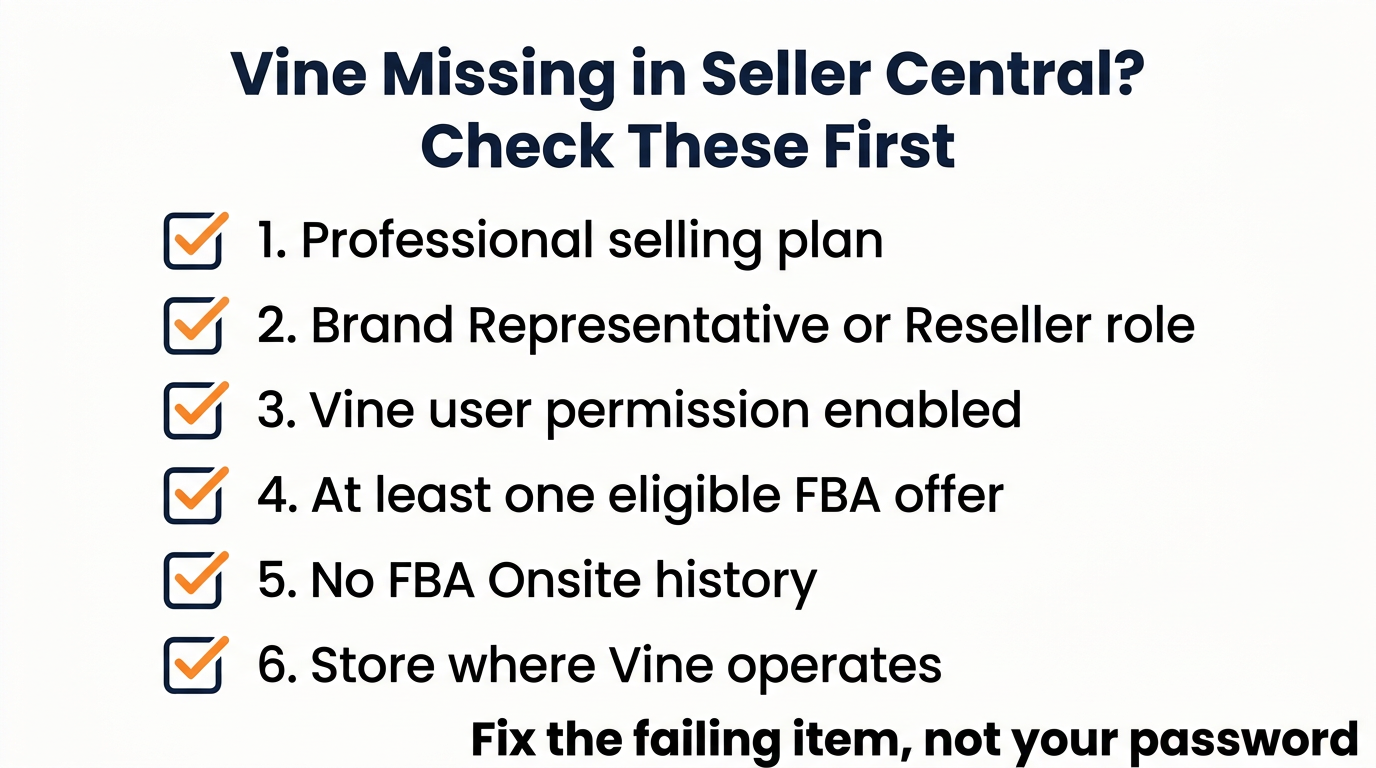
Amazon currently lists these prerequisites on its Selling Partner eligibility help page and the seller-facing Vine page:
- A Professional selling plan. Individual accounts do not qualify.
- A Brand Representative or Reseller role in a brand enrolled in Amazon Brand Registry, or generic (unbranded) products in your catalog.
- At least one eligible FBA offer. Vine ships through Amazon's fulfillment network to protect reviewer anonymity, so merchant-fulfilled offers do not qualify.
- No current or past participation in FBA Onsite. Amazon excludes these accounts.
- Selling in a store where Vine operates. Amazon currently lists the United States, Canada, the United Kingdom, France, Germany, Italy, Spain, Australia and Japan.
- For secondary users: the Vine permission. Some users on an account may not see Vine at all until the primary user enables it under Settings > User Permissions > Manage Permissions > Advertising > Vine.
New sellers who have not yet set up Brand Registry or FBA usually need to resolve those foundations first. If you are still at that stage, Amazon store setup, including Brand Registry enrollment and FBA configuration, is the work that has to happen before Vine can appear.
Product eligibility: why an ASIN may not enroll even when you are in
Getting into the dashboard is step one. Amazon then checks each product. A product must:
- have an FBA offer with available inventory;
- have fewer than 30 reviews on its detail page;
- have an image, a description, a title and a browse node;
- not be an adult product, a digital product or a bundle, and not require another product to work;
- be associated with a brand for which your user holds the correct role.
Two limits matter for planning. An ASIN can only be enrolled in Vine once in its lifetime, and an account can hold up to 200 active enrollments at a time. On cost: Amazon currently charges $0 for up to 2 units, $75 for 3–10 units and $200 for 11–30 units in the US store. The fee is billed only after the first Vine review posts and not within the first 30 days, and there is no charge if no review arrives within 90 days.
How to Access Amazon Vine as a Reviewer (Vine Voice)
Who this applies to
Vine is invitation-only for reviewers. Amazon says it invites what it calls its most insightful reviewers, that Voices are not paid, and that their reviews carry a “Vine Customer Review of Free Product” label. Amazon does not publish the selection criteria, a required number of reviews, or a helpful-vote threshold.
Signing in on a desktop browser
- Type the Vine address yourself. Go to amazon.com/vine in the US, or your own marketplace domain followed by
/vine(for example amazon.co.uk/vine). Typing it avoids the lookalike “Vine login” sites that appear in search results. - Sign in with your usual Amazon email or phone number and password. The sign-in screen is Amazon's standard one. There is no Vine-specific username or password.
- Complete two-step verification or a passkey prompt if asked.
- Check what loads. If your account is a Vine Voice, you will see Vine's item pages. If it is not, you will see a message that Vine is currently an invite-only program.
- Bookmark the page. Vine is not linked from the normal Account & Lists menu, so the bookmark is the fastest way back.
On your phone: the Amazon app versus a mobile browser
There is no dedicated Vine app. Inside the Amazon shopping app, Vine has no menu entry. Two routes work:
- In the Amazon app: search for “Amazon Vine” and tap the Vine banner that appears above the product results.
- In Safari or Chrome: open amazon.com/vine, sign in, and switch on “Request Desktop Site” for the full layout.
Your first login as a new Vine Voice
Expect a short onboarding rather than instant access to items:
- Accept the Vine participation terms when prompted.
- Complete your account details on the Vine account page. In the US this includes a tax questionnaire.
- Confirm the shipping address Vine should use.
- Find the Vine Resources page (visible only after sign-in). It holds the current program rules, including review-rate expectations and tier information.
Never enter tax details through an emailed link. Those details are entered only inside the signed-in Vine account page.
Login vs. Eligibility: Why the Sign-In Is Rarely the Problem
Having an Amazon password does not give you Vine access. Being able to open Seller Central does not mean every Vine function is available to you. Four words get mixed up constantly, and separating them saves hours of misdirected troubleshooting.
| Term | What it means | Who it applies to |
|---|---|---|
| Login | Signing in to an Amazon or Seller Central account you already have. There is no separate Vine account. | Sellers and reviewers |
| Invitation | Amazon's decision to make a customer a Vine Voice. It cannot be requested, applied for or bought. | Reviewers |
| Eligibility | The account and product conditions Amazon checks before showing Vine and before accepting an enrollment. | Sellers |
| Enrollment | A seller adding a specific ASIN to Vine. Sellers do not “join” Vine as people; they enroll products. | Sellers |
In practice: if you are a reviewer who can sign in but sees the invite-only page, you have a login and no invitation, and no troubleshooting step will change that. If you are a seller who can sign in but sees no Vine menu, you have a login and an eligibility gap, and the fix is in Brand Registry roles, user permissions, your plan or your FBA setup, not in your password.
Amazon Vine Login Not Working? Here's What to Check
Start with the symptom, not the assumption. Match what you see in the table, then read the matching section.
| What you're seeing | Most likely cause | Who it affects |
|---|---|---|
| “Vine is currently an invite-only program” | Not invited, wrong account, or wrong marketplace | Reviewers |
| Vine page redirects to the homepage or loads blank | URL or session quirk; occasionally an outage | Reviewers |
| Cannot find Vine in the Amazon app | The app has no Vine menu entry; banner route can fail | Reviewers |
| Sign-in, two-step verification or passkey fails | Standard Amazon account issue | Both |
| No Vine option under Advertising in Seller Central | Prerequisite, brand role or user permission not met | Sellers |
| Vine loads but items, orders or reviews are missing | Portal display glitch or product-level restriction | Reviewers |
| Vine account shows as under review or closed | Review-rate expectations not met | Reviewers |
| Nothing on Amazon loads properly | Amazon-wide outage | Both |
1. The Vine page says the program is invite-only (reviewers)
Why it may happen: You are signed in to a different Amazon account than the one that received the invitation (shared household accounts are a frequent cause). You are on a different marketplace from the inviting one. Or the invitation was never issued to this account.
What to do next: Sign out, sign in with the invited account, and open the /vine path on the marketplace that invited you.
2. Vine redirects to the homepage or shows a blank page (reviewers)
What to check and do: Use the exact address https://www.amazon.com/vine (or your marketplace equivalent). Try a private window, sign out and back in, or use another browser. If the page still fails after a day, use the Contact Us option inside Vine.
3. Vine is not showing in the Amazon app (reviewers)
What to do next: Open amazon.com/vine in your phone's browser with desktop mode enabled. Update or reinstall the app. Members report the banner usually returns on its own.
4. Sign-in, two-step verification or passkey problems (sellers and reviewers)
These are ordinary Amazon account issues, not Vine issues. Use Amazon's standard account recovery. Reviewers go through Amazon customer service; sellers go through Selling Partner Support inside Seller Central.
5. Vine is missing from the Advertising menu in Seller Central (sellers)
What to check:
- Brand Registry: the roles assigned to the specific user who is signed in.
- Seller Central: Settings > User Permissions > Manage Permissions > Advertising > Vine for that user.
- Your selling plan.
- The marketplace selected in the top bar.
- Whether at least one FBA offer is live.
What to do next: Assign the role, grant the permission, upgrade the plan or create the FBA offer, then sign out and back in. If Vine still does not appear, open a case with Selling Partner Support with your merchant token, the brand name exactly as registered, a sample ASIN, a screenshot of the user's Brand Registry roles, and the marketplace ready.
6. Vine loads, but items, orders or reviews are missing (reviewers)
Members have reported periods where tabs load empty or an order disappears from the orders list. Wait 24 to 48 hours before assuming anything is wrong with your account. If it persists, use Contact Us inside Vine with the order number, date and a screenshot.
7. Your Vine account is under review or has been closed (reviewers)
Amazon's Vine Resources page sets an expectation for the share of ordered items that must be reviewed. Members quote it as at least 60 percent at all times, with recommendations paused when an account falls below that. Review outstanding items promptly; members report that recovering above the threshold for a sustained stretch restores recommendations.
8. Is Amazon Vine down?
Occasionally, yes. Vine went offline during a broad AWS outage in October 2025, and members report short maintenance windows. Check whether amazon.com itself is loading normally and whether other members are reporting the same issue. During an outage, wait; do not change account settings.
What You Should See After You Log In
Reviewer pages
| Page | What it holds |
|---|---|
| /vine (items) | Products currently available to you, split into tabs: Recommended for You, Available for All and Additional Items |
| /vine/account | Your evaluation period, status, tax information and forms |
| /vine/orders | Items you have requested and whether each has been reviewed |
| /vine/reviews | Your submitted Vine reviews and their status |
| /vine/resources | Program rules, review-rate expectations and tier details |
Tier thresholds and order limits are shown on your Resources page. Third-party guides disagree on the numbers, so use Amazon's page as the source.
Seller dashboard
Sellers land on the Vine dashboard: recommendations, enrollment, and per-ASIN status with any action-required errors listed first. That is also where you cancel an enrollment that has no claims yet or stop one that already has claims.
Amazon Vine Login by Marketplace
Amazon currently lists Vine in nine stores: the United States, Canada, the United Kingdom, France, Germany, Italy, Spain, Australia and Japan. Reviewer invitations are tied to a specific store, and seller eligibility is evaluated per store. A UK Voice cannot open Vine on amazon.com, and a seller who qualifies in the US does not automatically see Vine in Seller Central for Canada.
| Store | Reviewer address | Seller access |
|---|---|---|
| United States | amazon.com/vine | Seller Central US, Advertising > Vine |
| United Kingdom | amazon.co.uk/vine | Seller Central UK, Advertising > Vine |
| Canada | amazon.ca/vine | Seller Central CA |
| Australia | amazon.com.au/vine | Seller Central AU |
| Germany, France, Italy, Spain | amazon.de / .fr / .it / .es followed by /vine | Seller Central Europe, store selected in the top bar |
| Japan | amazon.co.jp/vine | Seller Central JP |
Amazon Vine in India and the UAE
India is not on Amazon's list of Vine stores, and the amazon.in/vine address did not load during testing. Indian brands that want Vine reviews typically reach the program by selling into a supported store such as the US or UK. If that is your situation, Amazon Global Selling support covers the account, compliance and logistics setup that has to come first, and our team in India works with brands making exactly that move.
The UAE store (amazon.ae) is also not on Amazon's current list. Check the Advertising menu in your own Seller Central store and Amazon's program page for changes rather than assuming availability.
Common Amazon Vine Login Mistakes
| Situation | Recommended action |
|---|---|
| Seller resets the password because Vine is missing | Check brand role and the Vine user permission instead; credentials are not the issue |
| Seller assumes Rights Owner or Administrator is enough | Add the Brand Representative role to the user who needs Vine |
| Seller tries to enroll before an FBA offer exists or in an unsupported store | Create the FBA offer, or switch to a store where Vine operates |
| Agency or team member expects Vine to appear automatically | Ask the primary user to grant the Vine permission |
| Reviewer signs in with a different Amazon account than the invited one | Sign out and use the invited account |
| Reviewer uses the wrong country domain | Use the /vine path on the store that invited you |
| Reviewer looks for Vine under Account & Lists or in the app menu | Bookmark amazon.com/vine; in the app, search “Amazon Vine” and tap the banner |
| Anyone searches for a Vine app or a third-party “Vine login” site | Neither exists; only sign in on a genuine Amazon domain |
| Anyone considers paying for an invitation or buying a Vine account | Do not. Vine is invitation-only and Amazon does not charge reviewers |
| Reviewer leaves an invitation unaccepted for months | Accept promptly; members report invitations can lapse |
Is Your Vine Invitation Real?
Because invitations arrive without warning, phishing attempts imitate them. Three checks settle it:
- Amazon never asks reviewers to pay, and Voices are not paid, so any message mentioning a fee or a payout is not from Vine.
- Verify without clicking anything in the message: type your marketplace's /vine address yourself and sign in. A genuine invitation lets you accept the terms; otherwise you see the invite-only page.
- Tax and personal details are only ever entered inside the signed-in Vine account page, never through an emailed form.
Frequently Asked Questions About Amazon Vine Login
No. Vine uses your existing Amazon customer account (reviewers) or Seller Central account (sellers). The address vine.amazon.com is only a redirect to a page on amazon.com. Any site presenting itself as a standalone Vine login is not Amazon.
Under Advertising > Vine in the top navigation, or directly at sellercentral.amazon.com/vine. If the option is absent, the account or the signed-in user does not currently meet Amazon's prerequisites.
Check, in order: Professional plan; Brand Representative or Reseller role for the signed-in user (not just Administrator or Rights Owner); the Vine user permission for secondary users; no FBA Onsite history; a store where Vine operates; and at least one live FBA offer.
No. Reviewers reach Vine through a browser at amazon.com/vine, or inside the Amazon shopping app by searching “Amazon Vine” and tapping the banner above the results.
Your own marketplace domain followed by /vine: amazon.co.uk/vine, amazon.ca/vine or amazon.com.au/vine. Invitations are store-specific, so the US address will not work for a UK Voice.
No. Amazon describes Vine as invitation-only and offers no application. Its only guidance is to keep writing helpful reviews on products you buy.
Most often you are signed in to a different Amazon account than the one that was invited, or you are on a different marketplace. Less often, the invitation was left unaccepted long enough to lapse.
There is no fee to join, and Voices are not paid. Amazon does state that Voices are responsible for any income tax on the items they receive, which is why US members complete a tax questionnaire on first login.
Amazon's public Vine documentation for sellers describes the Seller Central route. First-party vendors should check their Vendor Central account and Amazon's vendor help for current availability.
Amazon recommends enrolling at least three weeks before launch with FBA inventory already in place, so that early reviews are live when traffic starts.
Occasionally. Vine went offline during a wider AWS outage in October 2025, and brief maintenance windows happen. If amazon.com itself is slow or failing, wait rather than changing anything on your account.
It usually means your reviewed-item rate has dropped below the expectation shown on Vine's Resources page (members quote 60 percent). Recommendations pause until the rate recovers.
Reviewers: use Contact Us inside the Vine pages. Sellers: open a case with Selling Partner Support in Seller Central. Regular Amazon customer service cannot manage Vine invitations or enrollments.
Yes. The program is active in nine Amazon stores and continues to accept seller enrollments and invite new reviewers.
Related Guides From GrowithAmazon
Amazon Vine Program Explained
How enrollment works, what it costs and how to choose which products to put into Vine.
Establishing Brand Authority on Amazon
Where early reviews fit alongside Brand Registry, A+ Content and your Brand Store.
Amazon Seller Metrics: The Complete KPI Guide
The conversion and review-related numbers to track once Vine reviews start landing.
Amazon Seller Central Updates
Our running log of marketplace changes, including Vine policy updates as Amazon announces them.
How GrowithAmazon Helps With Vine Access and Launch Readiness
GrowithAmazon is a full-service Amazon agency working with brands across the US, UK, UAE and India. The pattern is consistent: a brand discovers Vine is missing a few weeks before launch, and the underlying gap is in account structure, brand roles or listing readiness.
| Your situation | What is usually behind it | Where we help |
|---|---|---|
| Vine is not in your Advertising menu | Brand Registry role, user permission, plan type or FBA offer | Seller Central management: permissions, roles, case handling and account health |
| You are new to Amazon and not yet brand-registered or on FBA | Foundations that have to exist before Vine can appear | Seller onboarding and store setup, including Brand Registry and FBA configuration |
| Products fail Vine's listing checks | Missing images, descriptions, browse nodes or brand association | Product listing optimization |
| You want Vine inside a wider, compliant review and ranking plan | Enrollment timing, Request a Review, review velocity | Amazon SEO and white-hat review strategy |
| You sell from India or the UAE and want Vine in a supported store | Vine is not available in those stores | Global selling setup for the US, UK and EU |
| You want a one-off opinion, not a retainer | Eligibility check, launch sequencing, budget | Amazon consultancy |
We do not have any influence over Amazon's invitation decisions for reviewers, and no agency does. What we can do for sellers is make sure the account is structured so that Vine appears when it should, the right products are enrolled at the right time, and the reviews that come back feed into listing and advertising decisions. Examples of that work are in our case studies.
Where to Go From Here
The whole question of an Amazon Vine login comes down to one distinction. Your credentials get you into Amazon; access to Vine depends on who you are to Amazon. Reviewers need an invitation on the right account in the right store. Sellers need the right plan, the right brand role, an FBA offer, a supported marketplace and, for team members, the right permission.
If you are a reviewer and the invite-only page is what you see, keep reviewing and keep an eye on the account that would receive an invitation. If you are a seller and Vine is missing, run the prerequisite checklist above and fix the first item that fails; open a support case only after that, with your merchant token, brand name and ASIN ready.
For brands, Vine is one step in a launch sequence that also depends on Brand Registry, FBA readiness and complete listings. When any of those is shaky, Vine access is usually the symptom rather than the problem.
GrowithAmazon is an independent agency supporting Amazon sellers and is not affiliated with Amazon. Vine rules, fees and availability change; the official Amazon pages linked in this guide are the source of record.